
If Instagram highlights aren’t loading, the fix in order: (1) force-close and reopen the app, (2) clear cache in phone settings, (3) update Instagram from the store, (4) toggle Wi-Fi and mobile data, (5) check DownDetector for outage, (6) try a web viewer as fallback, (7) reinstall as last resort. Cache clear + app update fixes 80% of cases in under five minutes.
⚡ Key takeaways
- Cache clear + app update fixes the majority of highlight-loading failures.
- Always check DownDetector before deeper troubleshooting — sometimes Instagram itself is down.
- Network toggles (Wi-Fi off/on, mobile data swap) resolve most connectivity issues without further steps.
- Web viewers continue working when the official app is broken — useful fallback.
- Reinstall is the nuclear option — works almost every time but loses your saved login.
Why highlights fail to load
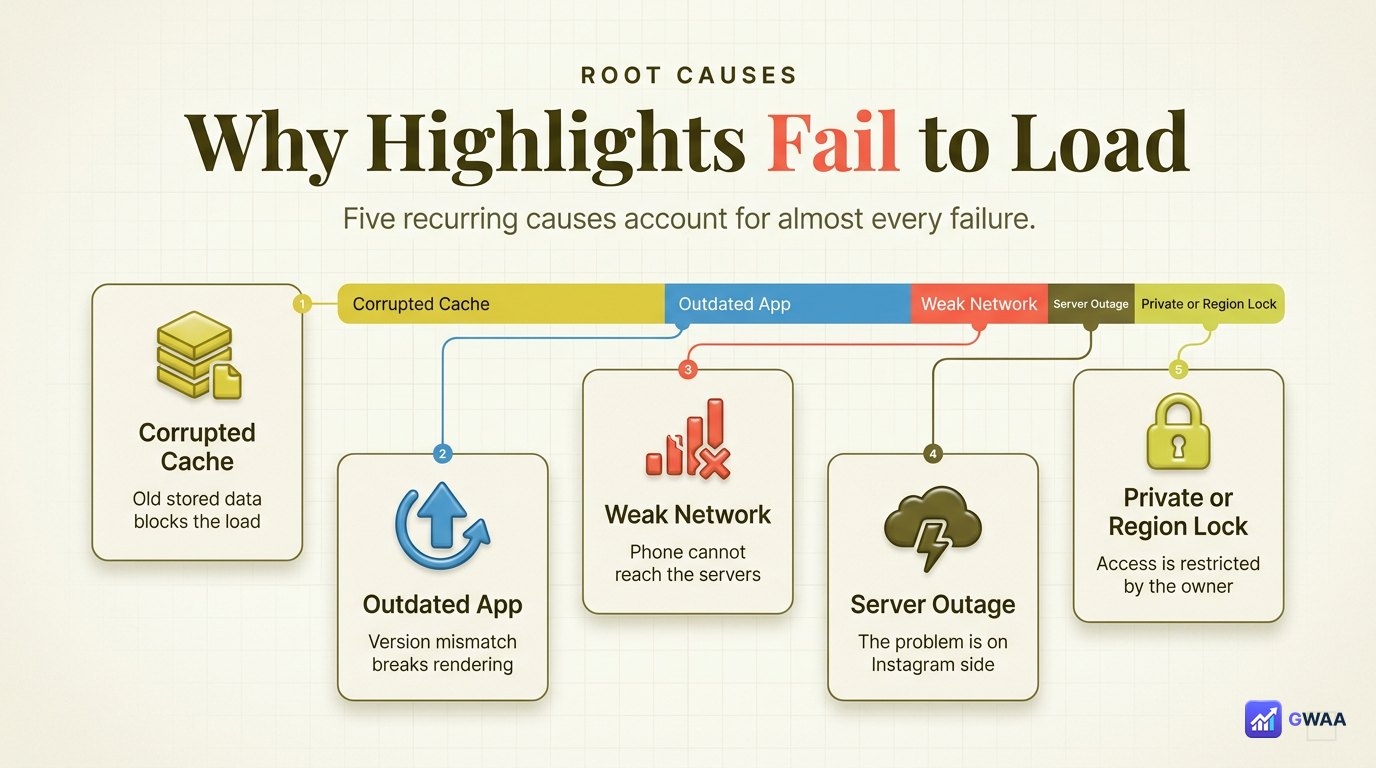
Highlights stop loading for a handful of recurring reasons. Knowing which one you’re looking at saves troubleshooting time:
- Cached data corrupt. Instagram stores a local cache of profile data, highlight thumbnails, and authentication tokens. If any of it gets corrupted — usually after an app update or unexpected shutdown — the highlight loader hangs.
- Old Instagram app version. Instagram regularly changes its internal endpoints. Old app versions break overnight when the server-side update goes live.
- Spotty network connection. Highlight thumbnails are around 100KB each; a row of six covers needs ~600KB to render. Weak Wi-Fi or slow mobile data times out the request mid-load.
- Instagram server outage. Genuine platform-wide outages happen 2-4 times per month. Highlights are often the first thing to break since they pull from a separate endpoint.
- Account region restriction. Some accounts geo-restrict their content. If you’re viewing from outside the allowed region, highlights show up blank.
Fix 1: clear the Instagram cache

Cache clear is the fastest fix for the most common cause:
- Open your phone’s Settings app.
- Go to Apps (Android) or General → iPhone Storage (iOS).
- Find Instagram in the list and tap it.
- Tap Clear cache (Android) or Offload App (iOS — this clears cached data while keeping your login).
- Reopen Instagram. Highlights should reload.
Cache clear doesn’t log you out and doesn’t affect your saved data. It only removes the temporary files. About 60% of highlight-loading issues resolve here.
Fix 2: update Instagram to the latest version

If cache clear didn’t work, the next suspect is your app version:
- Open the App Store (iOS) or Play Store (Android).
- Search for Instagram.
- If you see an Update button, tap it. If you see Open, you’re already on the latest.
- Wait for the update to install (60-90 seconds typically).
- Open Instagram fresh.
App updates fix the version-mismatch problem caused by Instagram’s server-side endpoint changes. Combined with cache clear, this resolves about 80% of all highlight-loading complaints.
Fix 3: reset the network connection
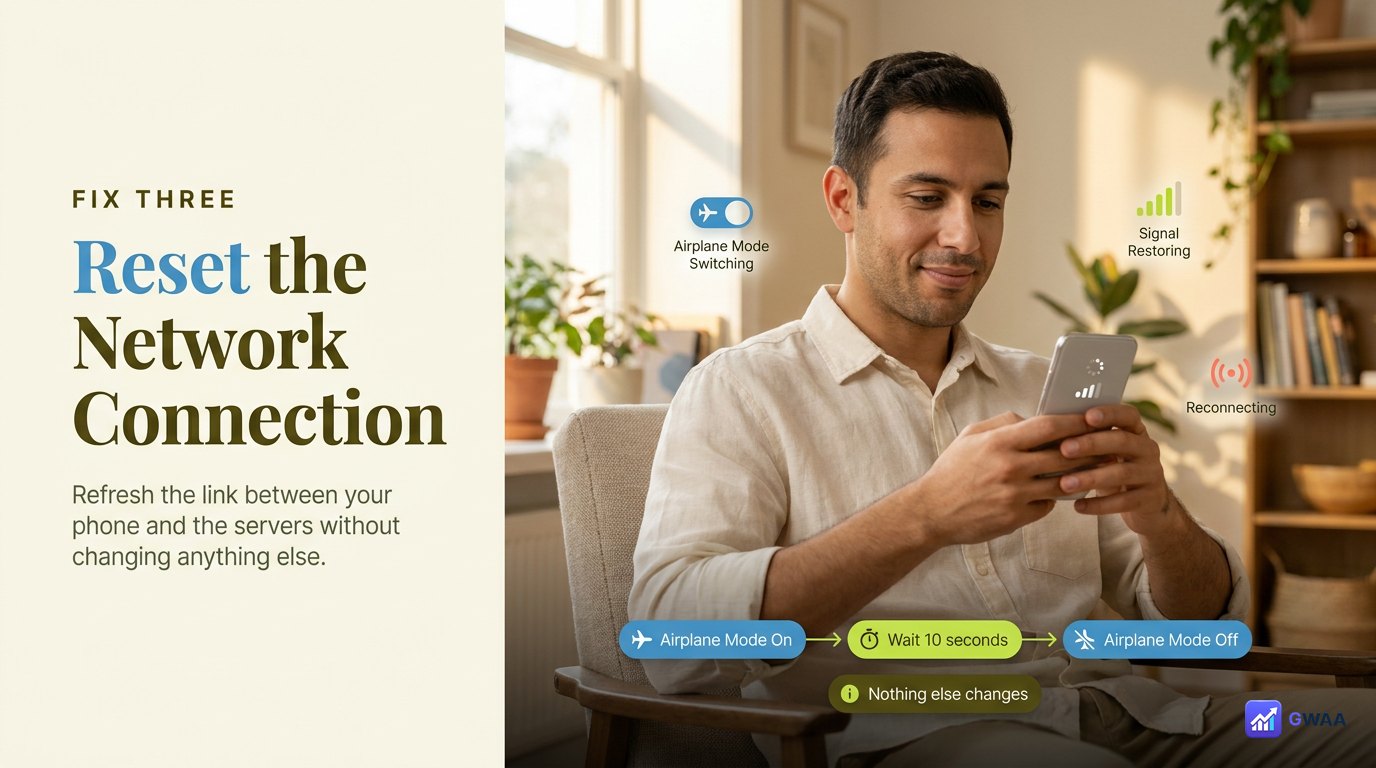
If the app and cache are fine, the issue is the connection between your phone and Instagram’s servers:
- Toggle Wi-Fi off then on. Swipe down Control Centre (iOS) or Quick Settings (Android). Tap Wi-Fi off, wait three seconds, tap on. Wait for it to reconnect.
- Try mobile data. Disable Wi-Fi entirely and let mobile data take over. If highlights load on mobile data but not Wi-Fi, your home Wi-Fi has an Instagram-specific issue (sometimes ISP routing).
- Toggle airplane mode. Airplane mode on, wait five seconds, airplane mode off. This completely resets all radios and re-establishes every network connection.
One of these three almost always fixes residual network-side issues. If none do, the problem is on Instagram’s side, not yours.
Fix 4: verify if Instagram is actually down

Before reinstalling or other deep troubleshooting, verify the problem isn’t on Instagram’s end:
- Open downdetector.com in any browser.
- Type Instagram in the search box.
- Look at the graph. A sustained spike of reports in the last hour means platform-wide outage.
- Scroll to the “reported issues” section to see if highlights are specifically mentioned.
If it’s an outage, there’s nothing you can do but wait. Most Instagram outages resolve within 1-3 hours. Don’t reinstall during an outage — you’ll think the reinstall fixed it when actually Instagram came back online on its own.
Fix 5: reinstall Instagram (nuclear option)

If the first four fixes haven’t worked, reinstall:
- Delete the app. Long-press the Instagram icon and tap Delete / Remove. Confirm.
- Reinstall from the store. Open the App Store / Play Store and reinstall Instagram fresh.
- Log back in. You’ll need to enter your username and password (and possibly do 2FA).
- Open a profile with highlights to verify they load correctly.
Reinstall removes every trace of cached data, corrupted preferences, and orphaned authentication tokens. It’s the nuclear option but it works almost every time when nothing else does.
Fix 6: use a web viewer as a fallback

If you need to see specific highlights right now and don’t want to troubleshoot, web-based viewers work even when the official app is broken:
- Web viewers fetch content server-side and serve it to your browser, bypassing whatever’s broken in the app.
- Best for one-time urgent viewing, not for permanent replacement.
- Public profiles only — same restriction as the app.
Useful when you have a specific highlight you need to see right now (research, work, time-sensitive) and the app isn’t cooperating.
Fix 7: region restrictions

If you see a banner saying “This content is not available in your region”, the issue isn’t technical — it’s a choice the account owner made:
- Owner-side restriction: the account owner enabled geo-restriction on their highlights. Some brands and creators do this for licensing or audience-targeting reasons.
- Account-side region mismatch: if you set up your Instagram account in one country and travelled to another, some content may be hidden.
- VPN or proxy interference: if you’re using a VPN, Instagram may detect mismatched location data and block content as a precaution.
The first case can’t be overridden from your side. The second usually resolves after a few weeks in the new region. The third is fixed by disabling the VPN.
If the account is private — send a follow request

Sometimes highlights aren’t loading because the account is private and you’re not approved as a follower:
- You’ll see the padlock icon and a centred “This account is private” message.
- The highlight row may show greyed-out circles or no highlights row at all.
- This isn’t a bug — it’s Instagram’s privacy design working correctly.
- Send a follow request via the Follow button and wait for the owner to accept.
Once your follow is approved, highlights will load normally. No tool, app, or workaround changes this.
The force-close-and-reopen trick worth trying first
Before any of the deeper fixes, the simplest move resolves a surprising number of cases: force-close Instagram completely and reopen it. Not just swiping the icon, but full force-close from the system:
- iOS: swipe up from the bottom of the screen and pause in the middle to enter app switcher. Find Instagram. Swipe its preview up to force-close. Tap Instagram from the home screen to reopen.
- Android: open the recent apps view (square button, gesture, or tap-and-hold home). Swipe Instagram’s card away or tap close. Reopen from your launcher.
This clears Instagram’s in-memory state without touching cached data or stored login. About 15% of "highlights won’t load" cases resolve here before you ever need to dig into settings. Always try this first — takes 10 seconds and costs nothing.
iOS vs Android — small differences worth knowing
The fixes above work on both platforms but a few details differ:
- Cache clear path. Android has an explicit “Clear cache” button per-app in Settings. iOS doesn’t — you use “Offload App” instead, which deletes the app binary but keeps your data, so reopening rebuilds the cache fresh.
- Auto-update. If you have auto-update enabled (most users do), the app updates in the background and you don’t need to manually check the store. Check anyway during troubleshooting — sometimes an update is stuck or queued.
- Network reset. Android has a “Reset network settings” option under System → Reset that’s heavier but more thorough than toggling Wi-Fi. iOS has the equivalent under General → Transfer or Reset iPhone → Reset → Reset Network Settings. Don’t use unless toggling fails.
- Reinstall login. Both platforms remember saved login if Instagram is on the same Apple ID / Google account when reinstalled, so login often auto-fills. Have your password handy anyway in case 2FA prompts.
When to stop troubleshooting and accept the issue
One useful sanity check before sinking another half hour into debugging: if highlights load on other accounts you visit but not on this specific one, the issue is the account itself, not your phone. The fixes above won’t help. Either the owner removed the highlights, the account went private, the account was deleted, or you’ve been blocked.
To check: open a different known-working profile with highlights (any public creator). If their highlights load fine but the original profile’s don’t, you’ve isolated the problem to that specific account. Stop troubleshooting your phone and accept that the content on their side has changed.
When the issue is your account, not the app
A small percentage of highlight-loading failures are account-specific:
- You’re shadow-banned or flagged. If you’ve recently been reported, Instagram may temporarily restrict your account’s ability to load certain content. This usually resolves on its own within 24-72 hours.
- You’ve been blocked by the account owner. Their profile and highlights will appear as if they don’t exist when you visit. Try the URL from an incognito browser to confirm.
- Your account has a pending action. If you missed a security review or 2FA prompt, certain features stay disabled until you complete it. Check the alerts section.
The seven-step debug checklist

Follow this order without skipping — most problems resolve well before the bottom:
- Force close Instagram and reopen.
- Clear Instagram cache in phone Settings.
- Update Instagram from the App Store / Play Store.
- Toggle Wi-Fi and mobile data.
- Check DownDetector for a platform-wide outage.
- Try a web-based viewer for the specific highlight you need now.
- Reinstall Instagram as last resort.
If all seven fail and you’ve confirmed it’s not an outage, the problem is almost certainly account-side — either you’re blocked by the owner, the account went private, or your account has a pending action you need to address.
The 80% fix in two steps

Most people stop at the right step: cache clear + app update resolves about 80% of cases. Combined time: under five minutes. If your highlights are still not loading after both of those, work through the rest of the checklist in order — you’ll find the cause by step 5 in almost every remaining case.
The remaining few percent are accounts that went private, owners who blocked you, or genuine Instagram outages — none of which any troubleshooting fixes. Recognising those cases saves the effort of trying to fix something that isn’t broken on your end.
Related guides
- How to view Instagram highlights anonymously — the safe web-fallback when the app misbehaves.
- How to download Instagram highlights — save them locally so loading issues stop mattering.
- Best Instagram highlights viewers — ranked tools that work when the official app is broken.
- View Instagram profiles anonymously — broader anonymous-viewing context.
- Fix Instagram “Couldn’t refresh feed” — related troubleshooting on the feed side.